From another app.
Straight into your album.
See a photo you want on your frame? Tap Share in an Android app that shares image files, choose Picta, and add it to your album.

Share from the apps you already use.
Organize your photos. Enjoy them on your frame.
For your Android phone · Android 7+ · ARM64 How to install
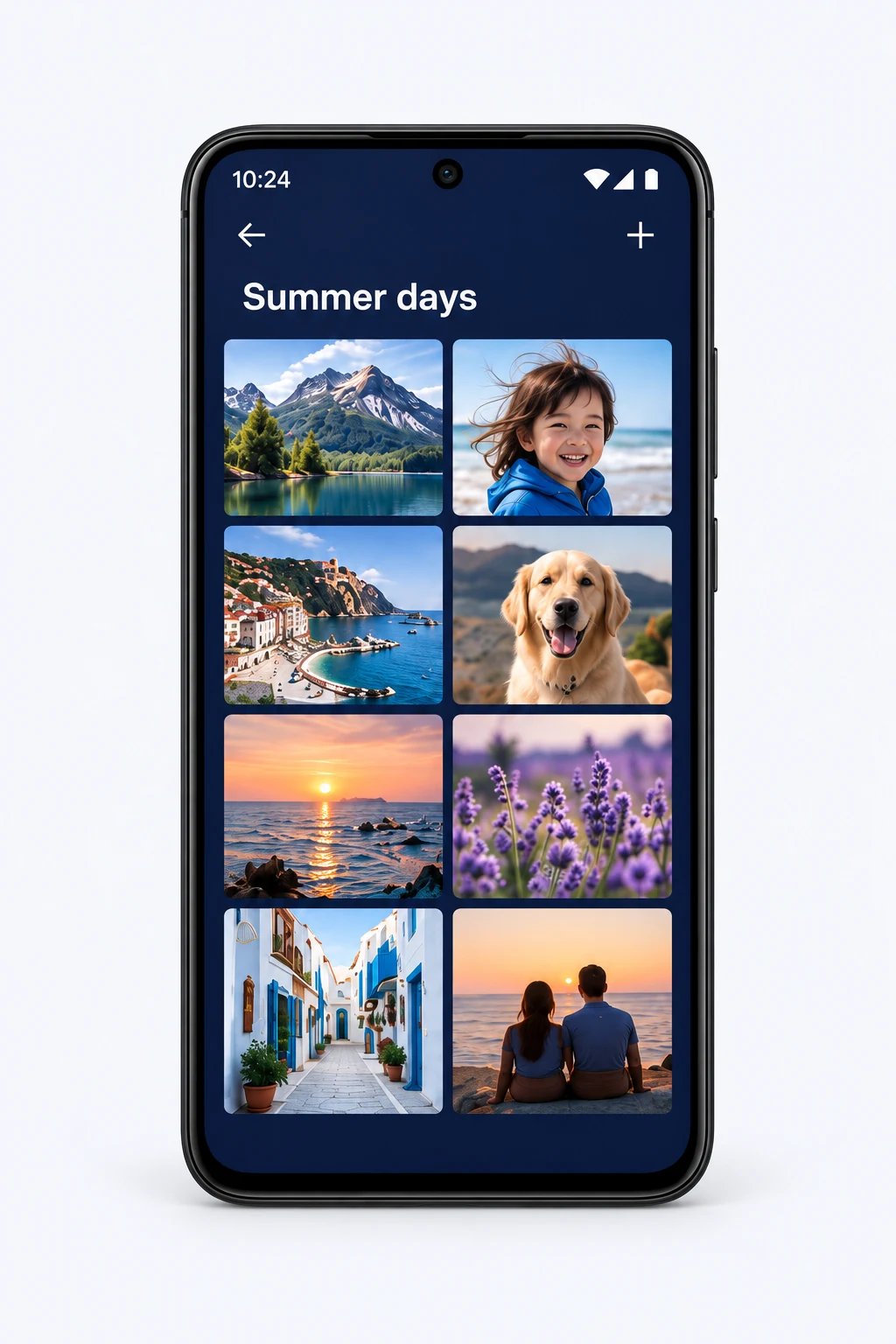 Photos for a brighter everyday.
See a photo you want on your frame? Tap Share in an Android app that shares image files, choose Picta, and add it to your album.
Add, reorder and remove photos in a visual album editor. Rename your album and set the pace. The Trial gives you one editable album with up to 30 photos.
Sign in with the account you already use. Browse and play existing supported albums, or send your new Trial album to your connected frame.
Existing albums are viewable and playable, but editing them and creating additional albums aren’t included in the Trial.
Compatibility depends on your Led-Cloud/MagicPlayer device and its supported photo-album format.
Your frame stays as it is. Install Picta on your Android phone.
Open this page on your Android phone and download the Trial.
Open the file. If Android asks, allow installation from the browser or file manager you used.
Use your Led-Cloud account, find your connected frame, and create your Trial album.
A few things you might be wondering.
Picta brings sharing, organizing and sending photos into one straightforward workflow. Share photos from another app, arrange them in an album, and send them to your compatible frame—all from your phone.
Yes. In an Android app that supports sharing image files, select your photos, tap Share, and choose Picta. You can then add them to your editable album and send them to your frame. You can also select photos from within Picta.
Picta gives you a visual album editor where you can add, reorder and remove photos, rename your album, and adjust how long photos appear. In the Trial, these editing tools are available for your Trial album.
Picta works with supported Led-Cloud/MagicPlayer displays registered to your Led-Cloud account. Compatibility depends on your device and its supported photo-album format; a Led-Cloud or Huidu label alone does not guarantee support. Use the Trial to check your own frame before relying on it.
Yes. Sign in with your existing Led-Cloud account to access connected frames and supported photo albums. The Trial lets you browse and play existing supported albums, but not edit or delete them.
Create and manage one Trial album containing up to 30 photos. Add, reorder, remove and replace photos, rename the album, adjust timing, and send it to your frame. You can also browse and play existing supported albums. Editing existing albums and creating additional albums are not included.
Your other albums stay saved. Play now changes the frame’s playlist and asks for confirmation. Add alongside adds the selected album to the existing playlist. Changing what plays is separate from editing or deleting a saved album.
Download the APK onto your Android phone, open the downloaded file, and follow Android’s installation prompts. If prompted, allow installation from the browser or file manager you used. Then open Picta and sign in with your Led-Cloud account. This download is for ARM64 Android phones running Android 7 or newer; install it on your phone, not on the frame.
Picta is coming soon to Apple devices. Currently, you can download the Android Trial APK for Led-Cloud. Google Play availability is also coming soon.
No. Picta is an independent app, unaffiliated with Led-Cloud or Huidu. It focuses on managing photo albums and does not replace Magic Designer’s full signage features.
Try Picta with the frame and photos you already have.
Download Android Trial APKAndroid 7+ · ARM64
 Picta
Picta